System login
Copyright © Quectel Wireless Solutions Co., Ltd. 2026. All rights reserved.
After installing the system, initialization information needs to be set for the first startup.
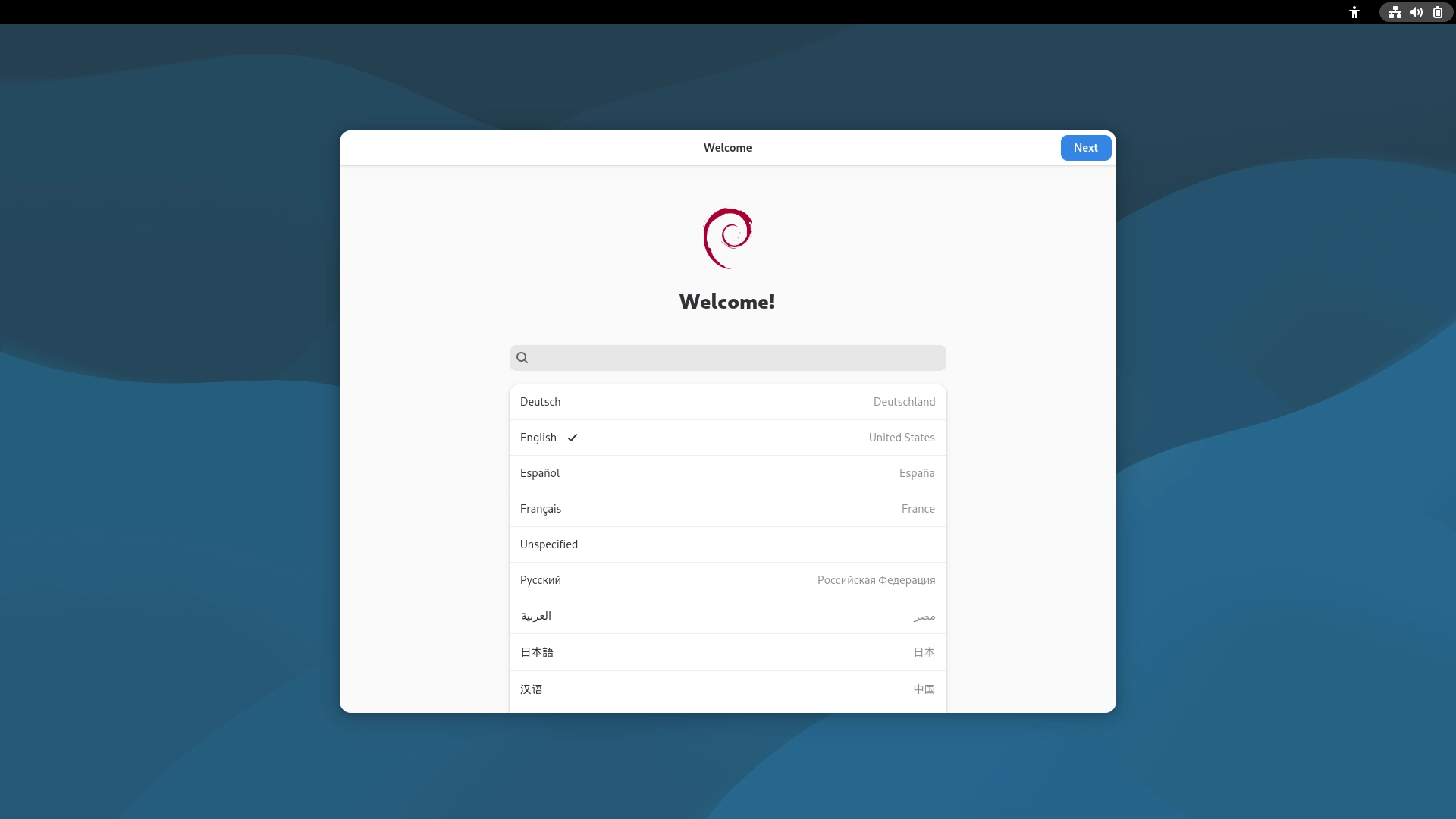
Select a language.
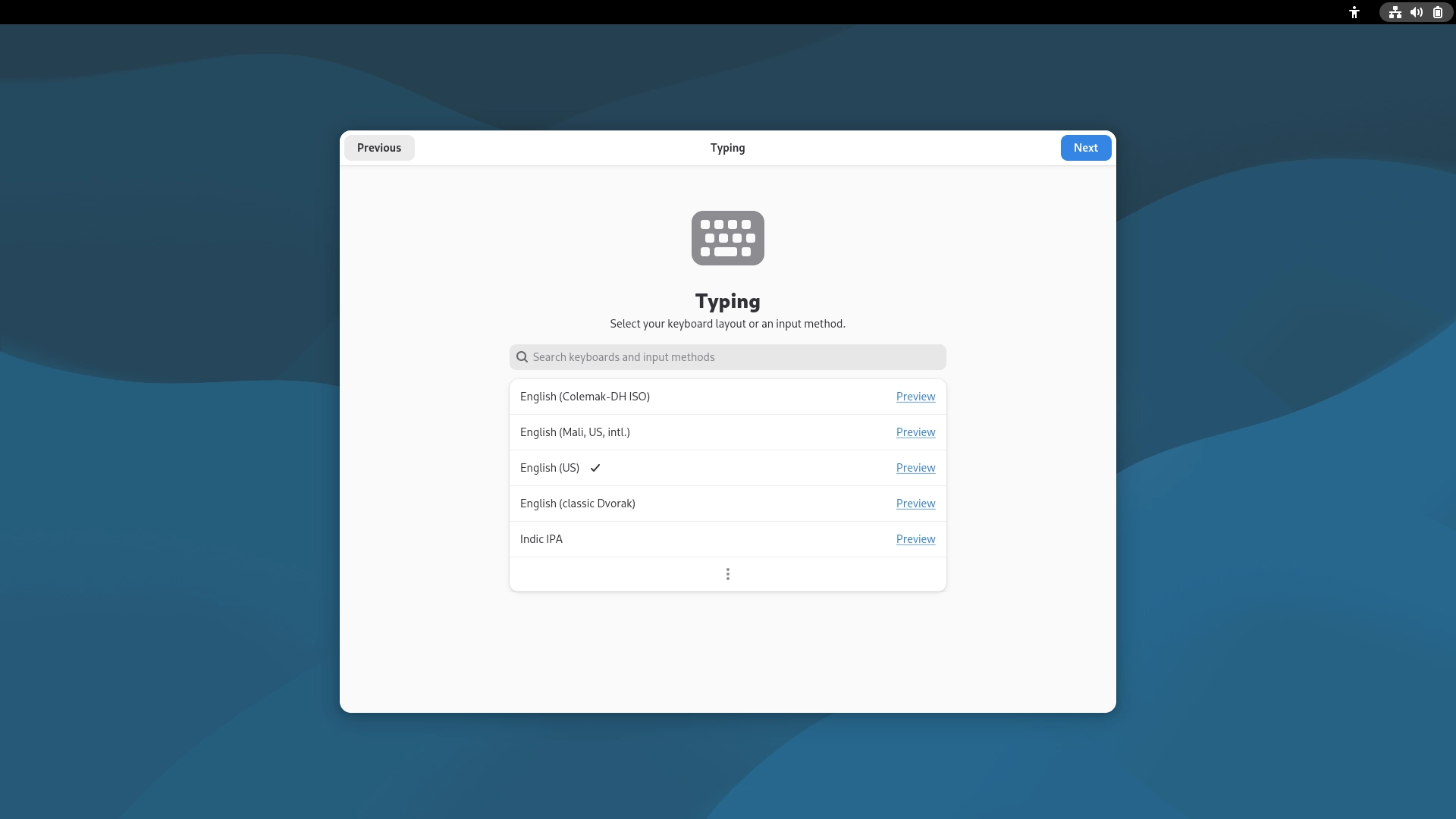
Select an input method.
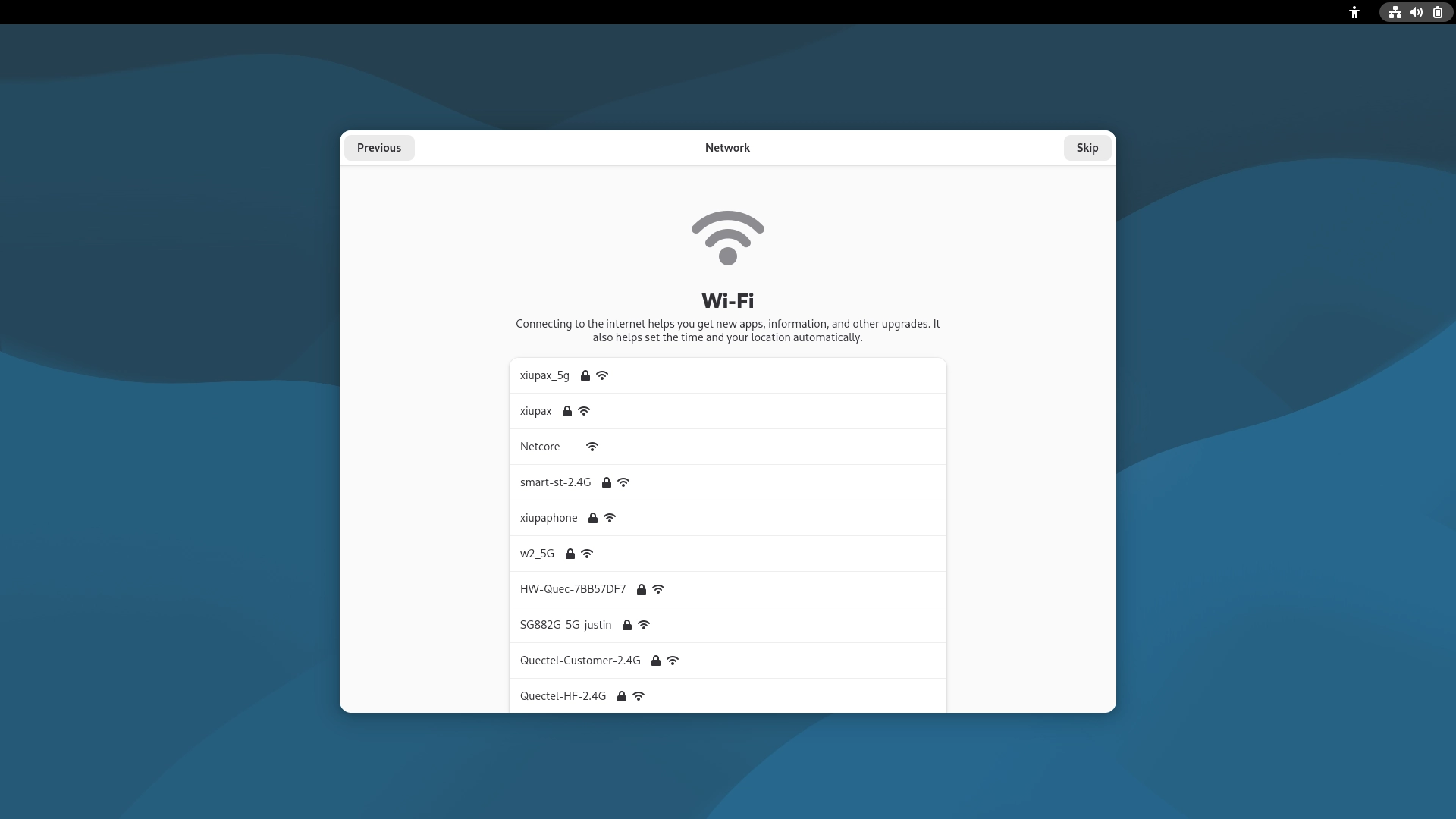
Select a Wi-Fi connection. If you prefer not to connect now, click “Skip” in the upper‑right corner.
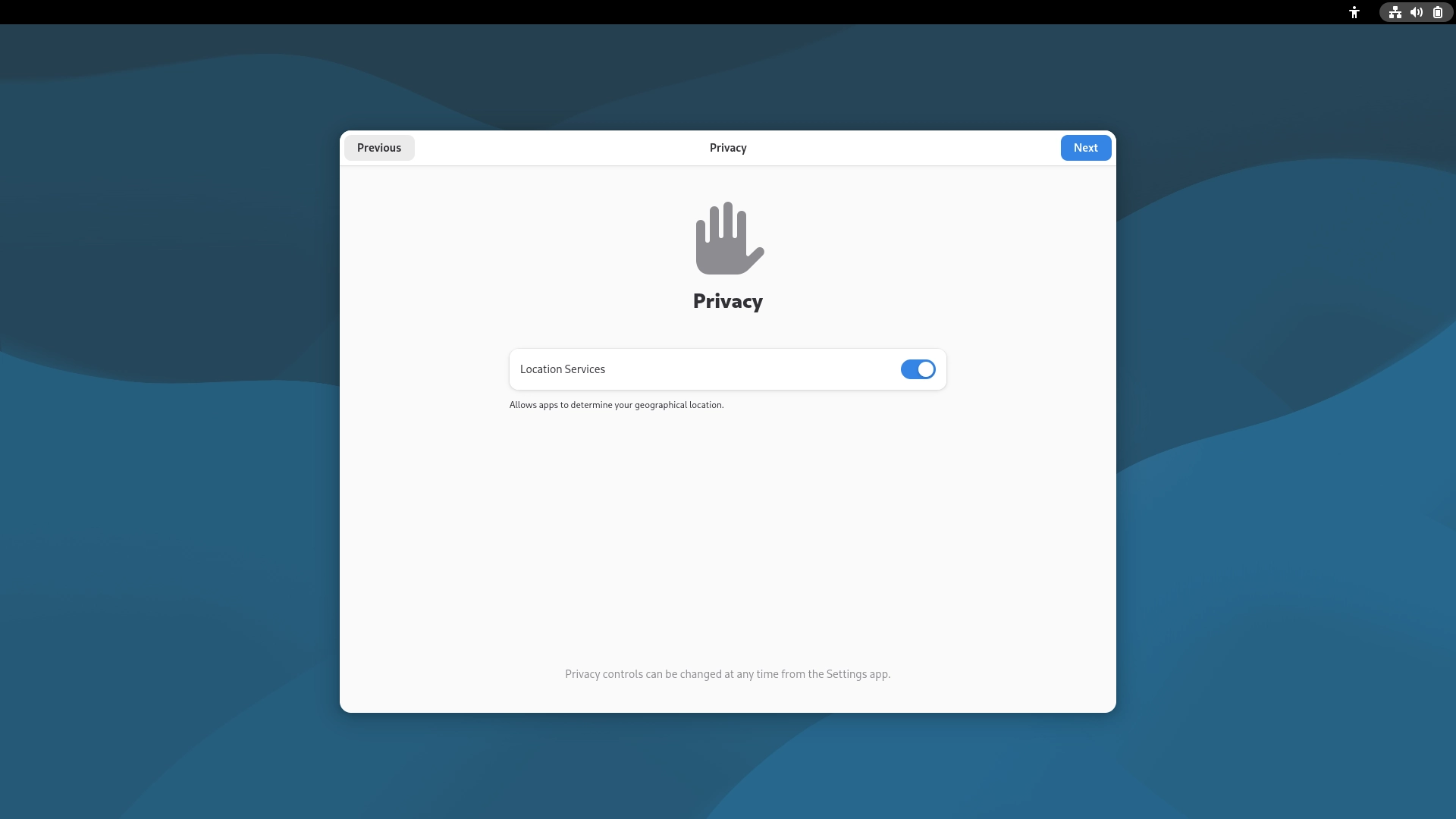
Set location services.
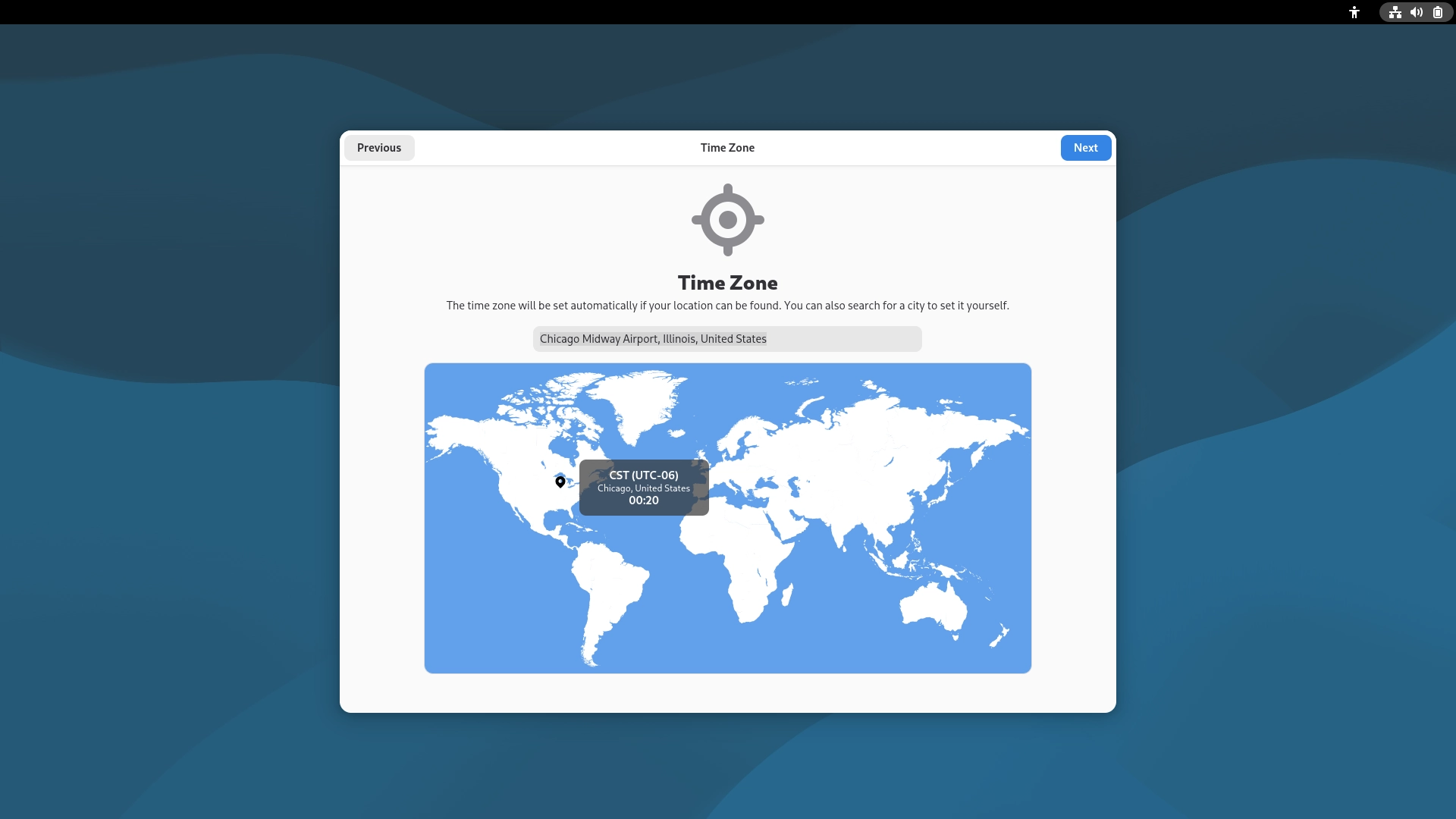
Set the time zone.
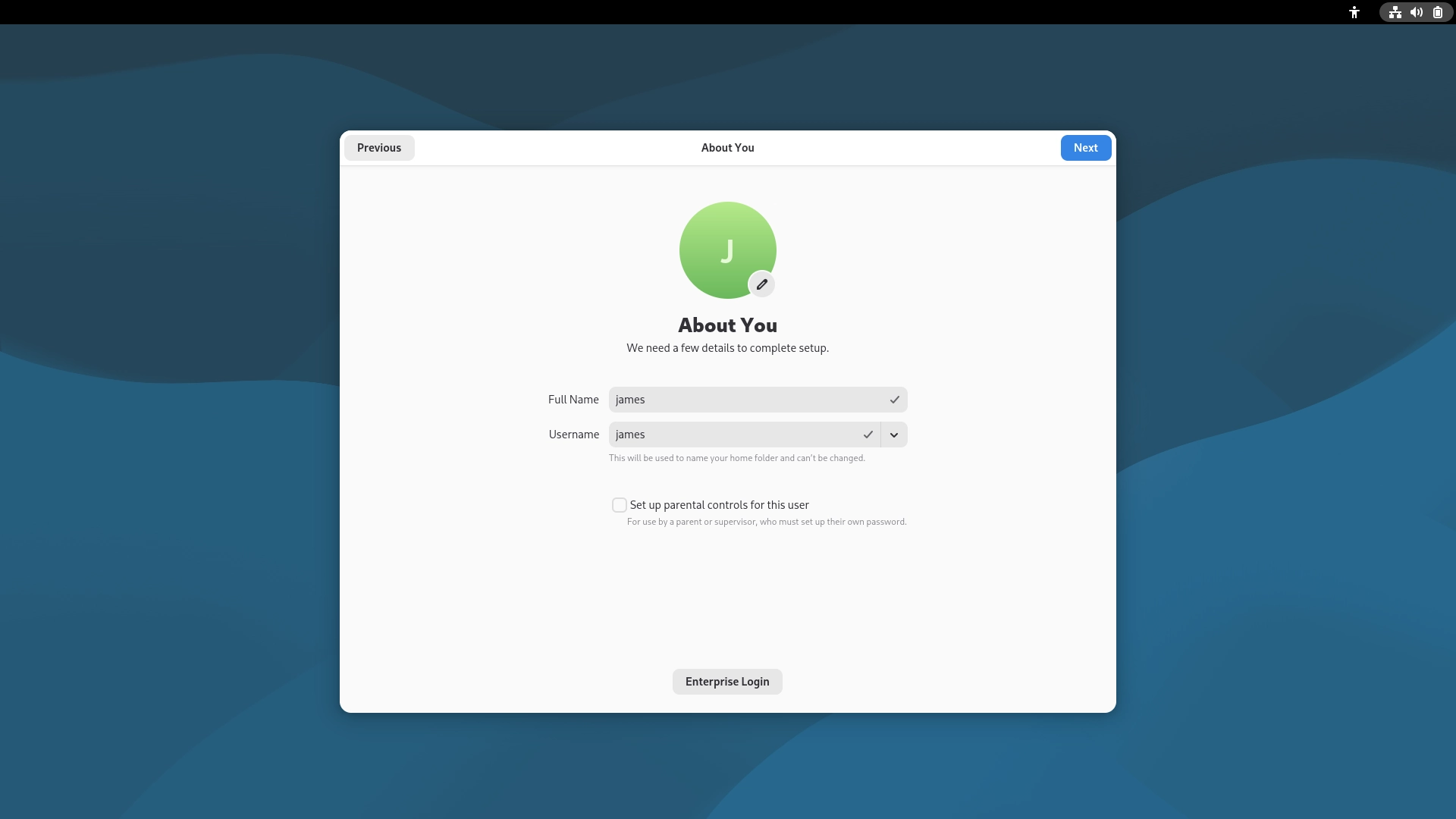
Set a username.
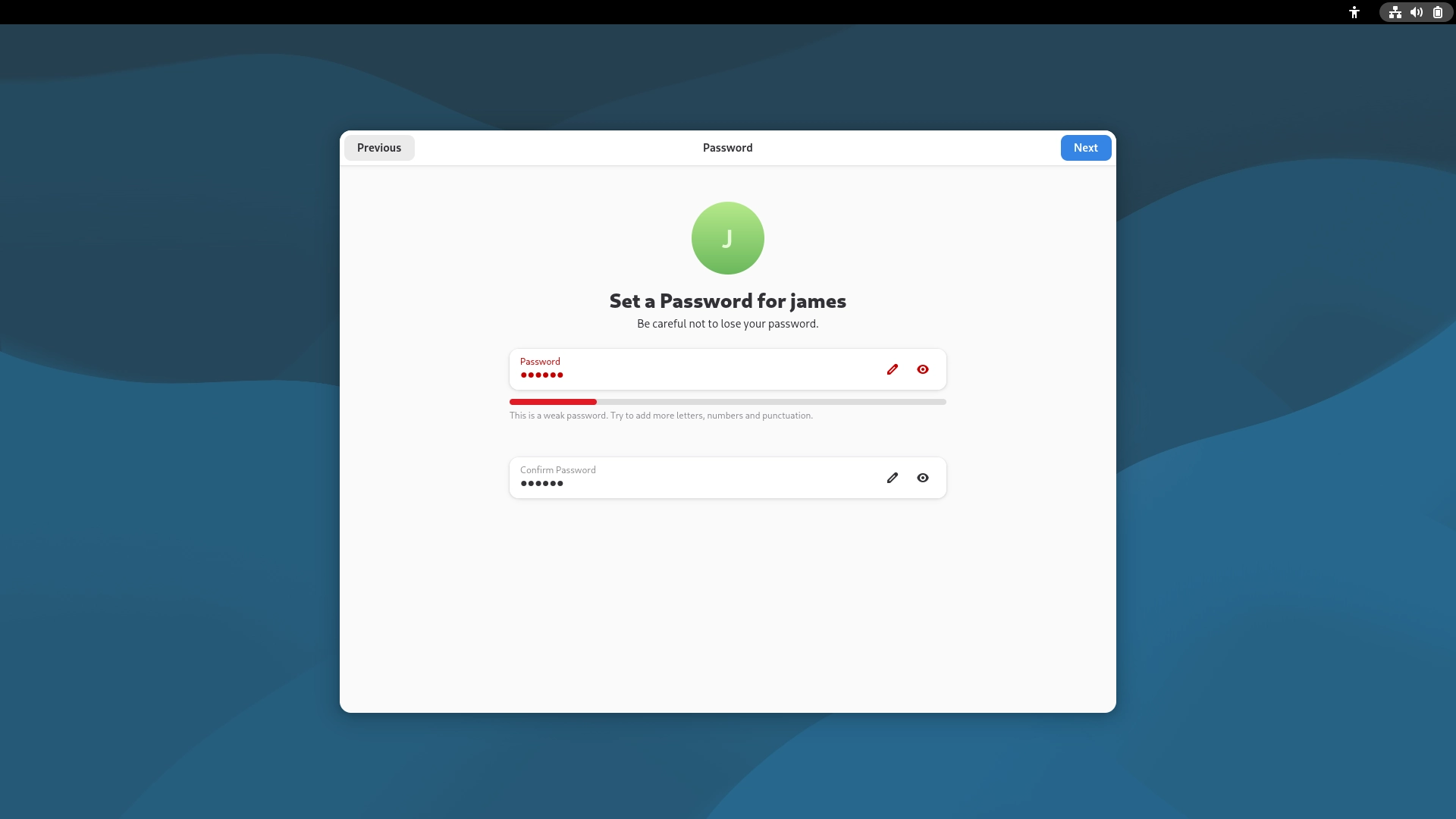
Set a login password.
Note
Please make sure to remember your username and password for the next login.
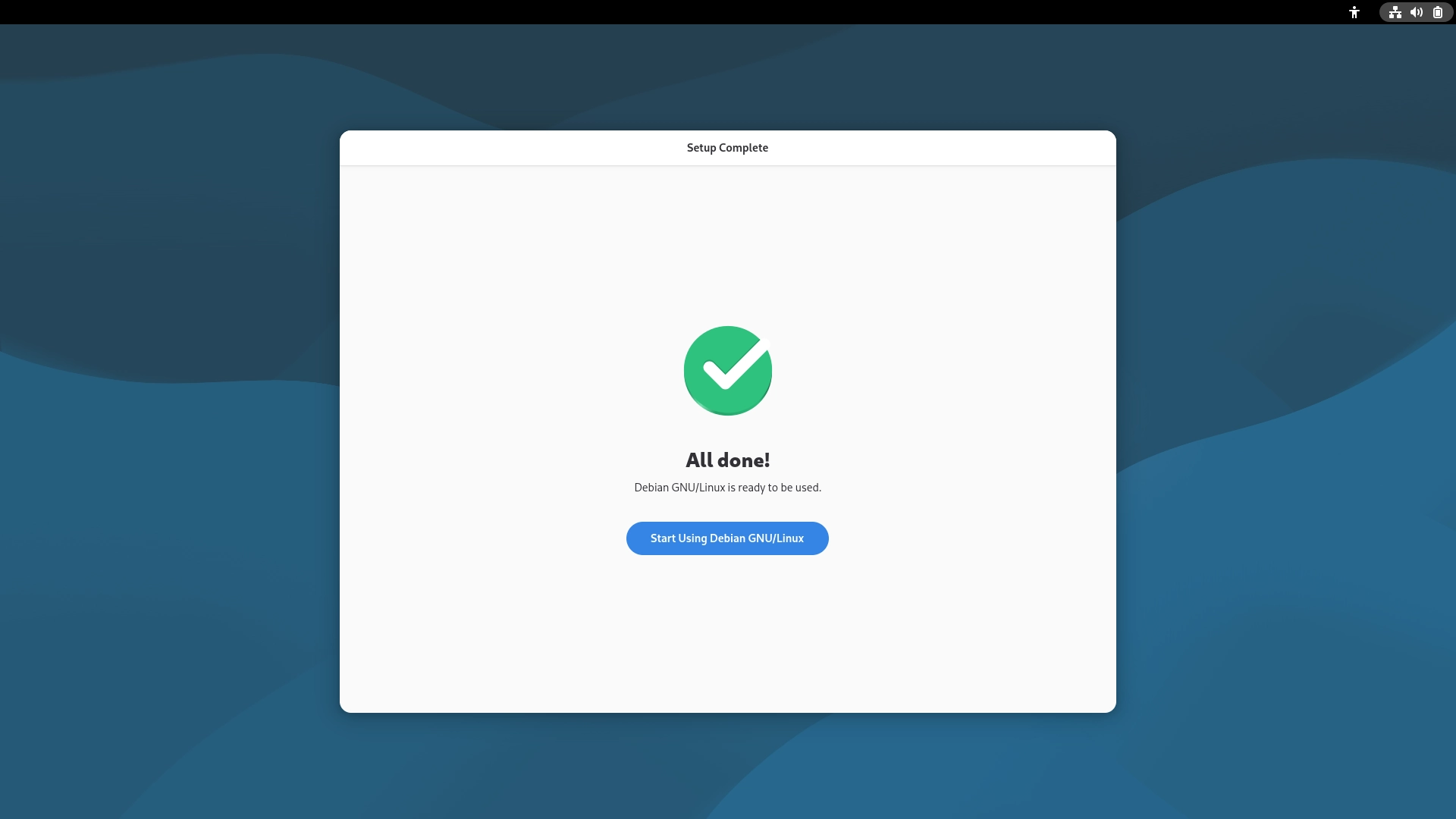
Initialization settings completed.
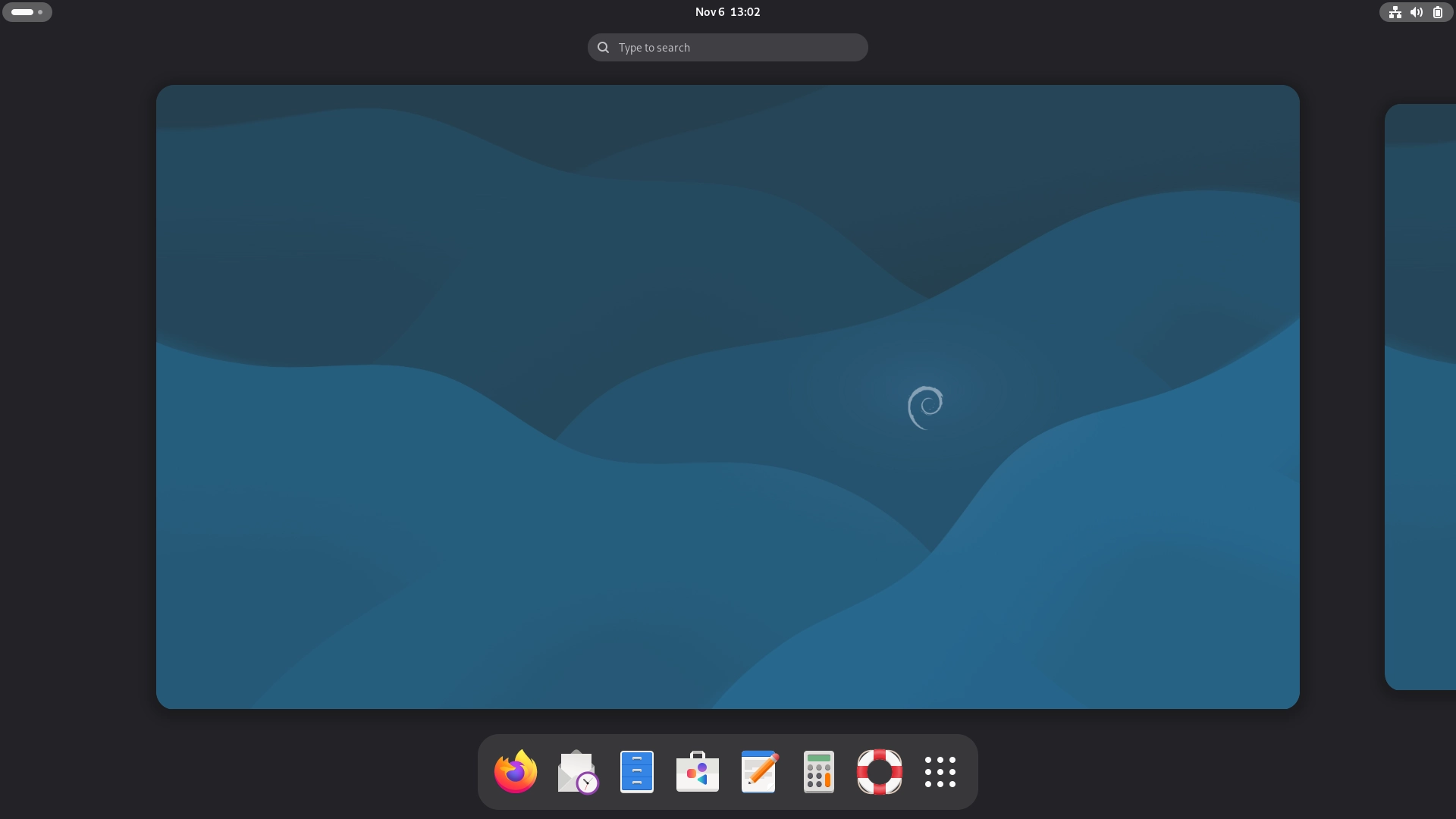
After logging in, the desktop will appear as shown in the figure below: